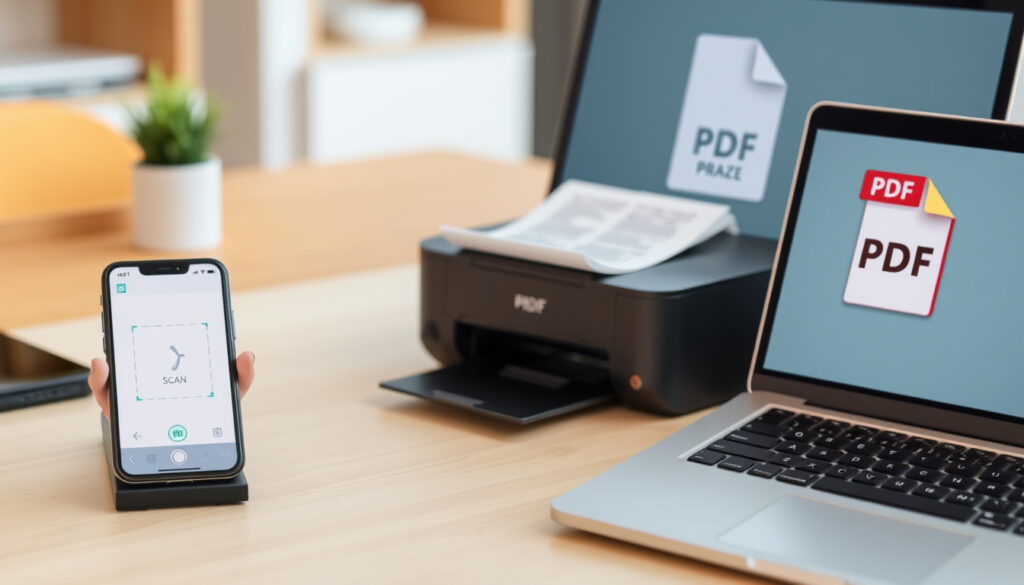
How to Scan Documents to PDF: Phone, Printer & Free Apps
Anyone who’s ever needed to send a signed contract or a boarding pass knows the frustration of a crumpled paper photo, but turning a physical document into a tidy PDF is simpler than most people think — and you probably already have everything you need. This guide walks through the four main ways to scan to PDF, from your phone to a local print shop, with no expensive software required.
Devices with built-in document scanning: Over 90% of modern smartphones · Free scanning apps available: More than 50 apps on major app stores · Average file size reduction when saving as PDF: 50‑80% compared to original image
Quick snapshot
- Google Drive supports scanning to PDF on Android (YouTube demonstration).
- Adobe Scan is free and offers OCR (Adobe Acrobat official site).
- FedEx Office provides self‑service scanning that outputs PDF (FedEx Office services).
- Which free scanning app has the best OCR accuracy under various lighting conditions.
- Whether public library scanning services are free in all locations.
- AI‑powered features (auto‑edge detection, text extraction) are now standard in free apps like Adobe Scan and PDFgear Scan (Adobe Acrobat official site).
- Apple and Microsoft have baked scanning directly into iOS Notes and Windows Scan, making extra apps optional (Apple Support).
- More apps will integrate offline OCR and unlimited PDF exports without subscriptions, as seen with PDFgear Scan (YouTube: best free scanner app).
- Expect deeper cloud sync between mobile scans and desktop editing suites (Adobe Document Cloud strategy).
Five key facts about document scanning to PDF, drawn from the methods covered in this guide:
| Fact | Value |
|---|---|
| Number of methods covered | 4 (phone, printer, online, retail) |
| Free scanning options | 3 (Adobe Scan, Google Drive, Windows Scan) |
| Average scan time per page (mobile) | 5–10 seconds |
| Common output quality | 200–300 DPI (sufficient for most documents) |
| OCR support in free apps | Yes (Adobe Scan, Microsoft Lens) |
How can I scan a document and save it as a PDF?
Using a smartphone with the default camera app
- On Android, open the Google Drive app, tap the plus icon, choose “Scan”, and capture the page — it saves directly to PDF. Auto edge detection and crop are included (Google Drive scanning walkthrough).
- On iPhone, open the Notes app, tap the camera icon, and select “Scan Documents”. It automatically saves as a PDF and can be exported to Files or emailed (Apple Support: scan documents on iPhone).
Using a dedicated scanning app
- Adobe Scan (free for iOS and Android) adds AI‑powered perspective correction, glare removal, and OCR that makes the PDF searchable (Adobe Acrobat mobile scanner).
- PDFgear Scan is completely free, ad‑free, and offers unlimited PDF exports plus AI summarization and receipt sorting (PDFgear Scan review).
Scanning with a multifunction printer
- Most all‑in‑one printers let you scan to PDF directly from the control panel. Select “Scan to PDF”, place the document, and save to a USB drive or network folder. Many also support “Scan to Email” to send the PDF as an attachment (Microsoft support: scanning in Windows).
The trade‑off: phone scanning wins on convenience, but a flatbed or sheet‑fed scanner delivers higher resolution (300+ DPI) for archival‑quality PDFs. Most people’s daily needs — receipts, contracts, notes — are well served by a 5‑second phone scan.
Can I scan a document to PDF and email it?
Scanning and emailing from a smartphone
- After scanning in Google Drive (Android) or Notes (iOS), tap the share icon and select your email app. The PDF attaches automatically. Adobe Scan and Microsoft Lens both have a “Share as PDF” button that opens the mail composer (Microsoft Lens official site).
Using a printer with email‑to‑PDF functionality
- Many office printers (HP, Brother, Canon) offer “Scan to Email” in the settings menu. The printer scans the document and sends the PDF directly to an address you specify — no computer needed (HP support: scan to email).
Scanning on a computer and attaching to email
- On Windows, use the built‑in Windows Scan app (free from Microsoft Store) to capture a document and save as PDF, then attach it to any email client (Microsoft support: Windows Scan). On macOS, Preview’s “Import from Scanner” does the same.
Why this matters: the fastest route from paper to a sent email is your phone. No printer, no computer — just the camera and two taps.
Where can I scan documents to turn into PDF?
Retail locations (FedEx Office, UPS Store, libraries)
- FedEx Office stores have self‑service scanners that save to PDF on a USB drive or email. Prices start around $0.20 per page (FedEx Office printing services).
- Many public libraries offer free or low‑cost scanning to PDF. Policies vary, so call ahead (American Library Association: library scanning).
Workplace shared scanners
- Office multifunction printers typically have a “Scan to Network Folder” or “Scan to Email” option. Check with your IT department for access and default PDF settings.
Public libraries and university computer labs
- Most libraries in the U.S. and UK provide free scanning to PDF on their flatbed scanners. Some require a library card to log in (New York Public Library: scanner services).
The catch: retail and library scanning is great for one‑off jobs, but for regular scanning, investing in a mobile app or a home printer is cheaper in the long run.
Is there a free way to scan to PDF?
Free mobile apps (Adobe Scan, Google Drive, Microsoft Lens)
- Adobe Scan is free for iOS and Android and includes OCR with no subscription needed for basic scanning (Adobe Acrobat official site).
- Google Drive can scan documents to PDF within the app at no cost on Android; the same feature is available on iOS through the Google Drive app (Google Drive scanning demo).
- Microsoft Lens (formerly Office Lens) is free and exports to PDF, Word, or OneNote with OCR (Microsoft Lens official site).
Free online web‑based scanners
- Websites like “Free PDF Scanner” allow scanning via browser camera (no install required). However, free tiers often limit you to single pages and require an internet connection. Use these only when you have no app access.
Using built‑in OS utilities (Windows Scan, macOS Preview)
- Windows 10 and 11 include a free “Windows Scan” app from the Microsoft Store that directly saves to PDF. Mac users can use Preview’s “Import from Scanner” feature (Apple Support: preview scan).
What this means: you have at least three genuinely free paths to PDF scanning on any device. The only missing piece in free apps is advanced image editing, which few everyday scans need.
What is the best way to scan to PDF?
Comparing mobile apps (Adobe Scan vs Google Drive vs CamScanner)
- Adobe Scan is often rated best for image quality and OCR accuracy among free apps (Adobe scanner app page).
- Google Drive is the fastest for Android users because no extra download is required.
- CamScanner offers more editing features in the free version but limits PDF exports unless you upgrade (CamScanner official site).
Comparing hardware (dedicated scanner vs all‑in‑one printer vs phone)
- A dedicated sheet‑fed scanner (e.g., Fujitsu ScanSnap) is fastest for high‑volume scanning: up to 25 pages per minute.
- A phone is best for portability and quick captures; a flatbed scanner yields sharper text for small or delicate documents.
Factors: speed, quality, OCR, cloud integration
- For most home and office use, a phone with Adobe Scan or Google Drive provides the best balance of speed (5‑10 seconds per page), acceptable quality (200–300 DPI), and free OCR.
- If you scan more than 50 pages a week, a dedicated scanner saves time and gives better batch handling (PCMag: best document scanners).
The “best” method depends on volume and location. Mobile apps are the default for most people; a printer or scanner is only worth adding if you’re scanning regularly at a desk. The free options from Adobe, Google, and Microsoft already cover the basics every user needs.
Privacy‑conscious users should choose offline‑capable apps like PDFgear Scan or the iOS Files scanner, which process scans entirely on the device. Cloud‑based apps like Adobe Scan may send images to remote servers for OCR processing.
The pattern: For most users, mobile apps provide the best balance of cost, convenience, and capability.
Clarity check
Confirmed facts
- Google Drive supports scanning to PDF on Android (YouTube demonstration).
- Adobe Scan is free and offers OCR (Adobe Acrobat official site).
- iOS Notes app scans documents to PDF without any download (Apple Support).
What’s unclear
- Which free app has the best OCR accuracy under poor lighting — results vary by environment.
- Public library scanning services may not be free in all municipalities; check local policies.
- FedEx Office self‑service scanning may have variable pricing and availability by location.
- Windows Scan app may not support all scanner models or require additional drivers.
Perspectives from the makers
Scan files as PDFs with your mobile device — Android. With Google Drive, you can scan documents using your device’s camera and save them as PDFs without installing any third‑party app.
— Google support documentation (Android scanning guide)
Adobe Scan transforms your device into a powerful scanner that recognizes text automatically (OCR). It’s free to download and works on both iPhone and Android.
— Adobe Acrobat official page (scanner app)
Microsoft Lens lets you capture information from whiteboards, documents, and business cards. It’s free and exports to PDF, Word, or OneNote with OCR.
How to scan documents on your iPhone or iPad. Use the Notes app to scan and save as PDF — no separate app needed.
— Apple Support (scanning on iOS)
For anyone regularly dealing with paper documents, the choice is clear: start with your phone and a free app. If volume climbs past 50 pages a week, a dedicated scanner pays for itself in time saved. The technology has matured to the point where a free tool like Adobe Scan or Google Drive handles 95% of everyday scanning needs, with no subscription and no compromise on quality.
The process is similar to scanning documents to PDF, which also details free phone and printer methods.
Frequently asked questions
How do I scan multiple pages into one PDF file?
Open your scanning app (e.g., Adobe Scan or Google Drive), scan the first page, then continue scanning additional pages — most apps automatically combine them into a single PDF. The iOS Notes app does this by default when you scan multiple pages in one session.
Can I scan documents to PDF without an internet connection?
Yes. Adobe Scan, the iOS Files app, Genius Scan, and PDFgear Scan all work offline for basic scanning. OCR may require internet in some apps (like Adobe Scan), but the scan itself is offline.
What is the maximum number of pages I can scan in one PDF using free apps?
Adobe Scan has no page limit in the free version. Google Drive allows up to 100 pages per scan session. PDFgear Scan offers unlimited pages without a subscription.
How do I reduce the file size of a scanned PDF?
Many apps offer a compression setting during save (e.g., “Smaller file” in Adobe Scan). Alternatively, use an online tool like Adobe Acrobat web’s “Compress PDF” or the built‑in compression in Google Drive.
Is scanning to PDF on a phone as good as a flatbed scanner?
For most documents (text, receipts, forms), a phone scan at 200–300 DPI is indistinguishable from a flatbed. For photographs or small print requiring 600+ DPI, a flatbed scanner still has the edge.
Do I need to install software to scan to PDF on Windows?
No. Windows 10 and 11 include the free “Windows Scan” app from the Microsoft Store. It scans directly to PDF. No extra drivers needed for most modern scanners.
Can I password‑protect a scanned PDF from a mobile app?
Adobe Scan lets you set a password when saving. Google Drive does not offer password protection in the scanning flow — you’d need to add it later via a PDF editor.
More related posts
 Free Walking Tour Dublin: Best Tours, Tips & How They Work
 Time in Los Angeles Now: Current Time, AM/PM, and UTC Offset
 Marks & Spencer Clothing: Discounts, Online Orders & Tips
 Road Traffic Accident Cork Today: Live Updates & Map
 Donal Skehan Banana Bread: Recipes, Tips, and Health Insights
 Ride On Lawn Mowers: Compare Brands & Prices in Ireland
 Galaxy C Series to Buy: Best Ireland Refurb Deals
 Waterford Hospital Phone Number: 051 848 000 & UPMC